Use Obscurify.ai in Firefox’s AI sidebar
Firefox’s AI chatbot sidebar can open any chat site next to your tabs. Point it at Obscurify.ai and you get the full site there: guests chat with Llama 3.3 70B with no account and no cookies, and you can sign in to use your plan’s models.
Set it up
- Open
about:configin a new tab and accept the warning. - Search for
browser.ml.chat.provider, click the edit (pencil) button, enterhttps://obscurify.aiand save.

- Open the sidebar with the AI chatbot icon in Firefox’s sidebar, or press Ctrl+Alt+X (Cmd+Option+X on a Mac). The chatbot menu at the top of the panel now shows
https://obscurify.ai: Firefox lists a custom chatbot by its address.
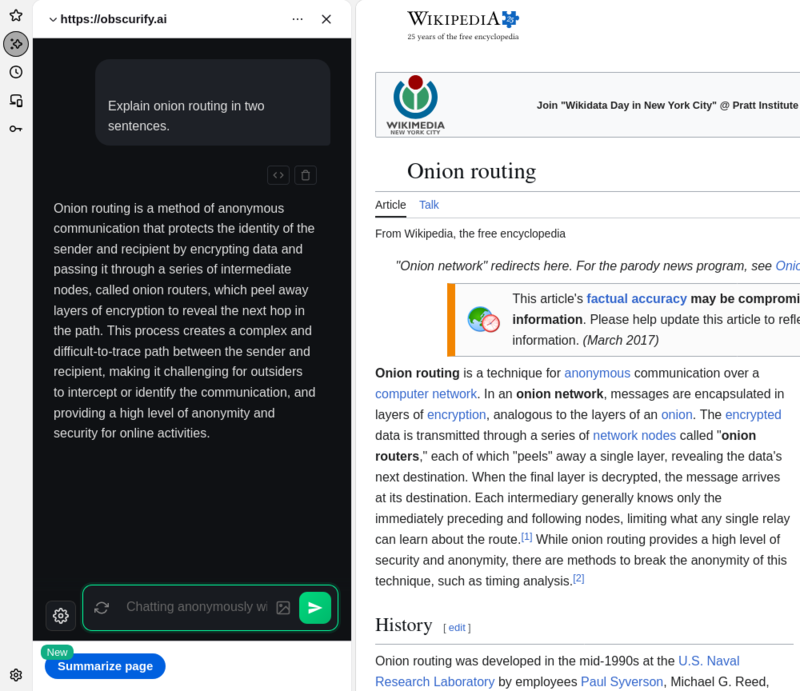
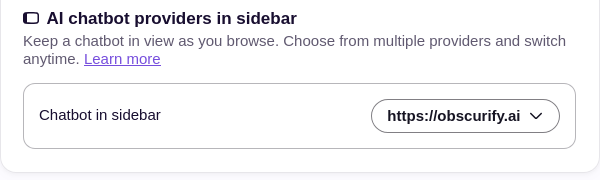
If the sidebar has no chatbot, open Settings → AI controls and check that Chatbot in sidebar isn’t set to Blocked. Once step 2 is done, it shows https://obscurify.ai.
Chat
Type in the box at the bottom of the panel. Guests get 30 messages an hour, with replies up to 2,048 tokens. For other models, create an account (a random account number, no email) or sign in from the ☰ menu at the top of the panel. New accounts may get $1 of starter credit while this month’s promo budget lasts.
Things to know
- Right-click prompts: select text on a page, right-click and pick Ask AI Chatbot (Summarize, Explain this, Quiz me, Proofread). Obscurify.ai opens a new chat in the sidebar with Firefox’s prompt and your selection already in the box. Read it, change it if you like, and press Enter: nothing is sent until you do. Firefox puts the prompt in the page address; the site removes it from the address as soon as the page loads.
- Summarize page: this button sends only the page’s address, not its text, so the model has nothing to summarize. To summarize a page, select its text and use Ask AI Chatbot → Summarize instead.
- Switching chatbots: Firefox keeps one custom address. If you pick another chatbot from the menu, set
browser.ml.chat.provideragain to come back.
Plans
Prices per model are on the model list, and each model has its own page with its price and the plan it needs. Frontier models need the Casual plan; uncensored models need Pro. See pricing.
Support
Questions or problems: contact us (email optional).
Last checked with Firefox 159.0 on 2026-10-28.